
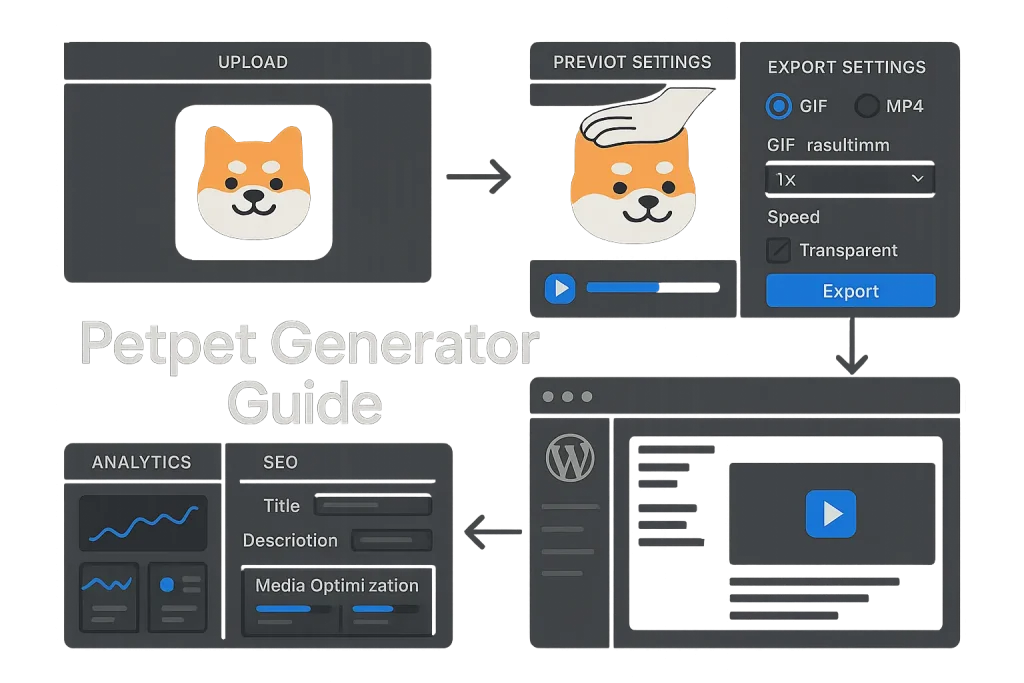
Small animated assets can give a post some personality without turning the page into a performance mess. A petpet generator does that job well: it turns a static avatar or PNG into a short looping animation that feels playful, lightweight, and easy to reuse across posts, author bios, community sections, and social teasers. For bloggers, the real value is not the joke alone. It is the operational fit: fast production, broad browser support, and just enough visual contrast to break up text-heavy content.
The category looks simple, but the publishing decisions still matter. File format, transparency, export size, accessibility, rendered HTML, lazy-loading behavior, and layout stability all decide whether a petpet GIF helps the page or becomes another blurry asset with a useless filename. On our side, this is where many teams get sloppy. The strongest workflow is still a mix of creative restraint and technical discipline.
This guide explains how a petpet gif is made, how to export it properly, how to use a petpet gif maker on desktop and mobile, how to solve common failures, and how to publish the asset in a way that supports both UX and search visibility.
Those three constraints explain most quality problems later. Tiny output keeps things fast, the short delay creates the familiar bounce, and the limited palette makes photo-heavy inputs fall apart quickly.
Overview: What Is the Petpet Generator and Why Bloggers Use It
A petpet generator is a lightweight tool that turns one uploaded image into a looping animation where a cartoon hand appears to pat the subject. In practice, the subject bounces, compresses slightly, and cycles through a small set of frames. One open-source implementation describes the effect as making a square avatar bounce up and down to simulate petting, which is exactly why square crops usually work better than wide images. That same reference implementation documents a default frame delay of 20 milliseconds and a sample output size of 128 pixels, according to the GitHub pet-pet-gif project.
Bloggers keep using this format for four practical reasons. It is fast to produce. It works across most browsers and messaging environments because GIF still has broad support. It creates an instantly recognizable reaction asset without requiring design software. And it is small enough to behave like inline media, not a full design project.
Typical use cases include:
- author reaction graphics in list posts or opinion pieces,
- community mascots and user avatars in membership blogs,
- micro-animations inside tutorials,
- newsletter teasers and social reposts,
- comment section or forum-style visual culture.
The format is less convincing in hero sections or image-heavy editorial layouts. Once the visual stretches across a large content width, the limits of GIF become obvious. On our side, we treat the pet pet generator as a “small expressive media” tool, not a substitute for real motion design. That distinction saves a lot of bad publishing decisions.

How the Petpet Effect Works (Frames, Squash-and-Stretch, Transparent PNGs)
The petpet effect runs on a short frame sequence, not true physics. Each frame shifts the subject slightly while the hand overlay moves down and up, creating the impression of contact and rebound. The illusion comes from timing and deformation, not from a complex motion engine. That is why even a basic petpet gif generator can produce a convincing result with only a few frames.
Three mechanics shape the final output:
1. Frame timing
Fast delays make the loop feel snappy and meme-like. Slower delays usually make the animation feel clumsy because viewers start noticing each transition. The commonly cited 20 ms default produces the quick bounce most people expect.
2. Squash-and-stretch
The subject compresses slightly when the hand “touches” it and rebounds when the hand lifts. That gives motion to a static image. If the source art has clean edges and a centered face or object, the effect looks intentional. If the subject is off-center or cluttered, the motion looks messy fast.
3. Transparency handling
Transparent PNG uploads usually give the cleanest results for blogs because the moving subject can sit on colored cards, patterned sections, or dark themes without a visible box. GIF89a supports transparency and multiple images in one file, which is one reason looping petpet outputs are technically possible, as summarized in the Wikipedia overview of GIF.
There is still one hard limit: GIF is restricted to 8 bits per pixel, so each frame can reference up to 256 colors. That is enough for simple illustrations, flat avatars, mascots, and logos. It is not ideal for gradients, photography, skin tones, or textured artwork. If someone enlarges the output or starts with a complex image, compression artifacts and color banding become obvious.
For bloggers, the practical takeaway is simple: use simple inputs. A transparent PNG avatar, icon, illustrated pet, mascot face, or logo variation will usually outperform a cropped photograph. We have seen this over and over in production. If the goal is a petpet generator gif for a meme block, simplicity beats realism almost every time.
| Element | What it does | Blogging implication |
|---|---|---|
| Square crop | Keeps subject centered during bounce | Reduces awkward clipping and empty side space |
| 20 ms frame delay | Creates a fast loop | Feels playful without taking attention away from text |
| Transparent PNG input | Removes solid background box | Blends better with blog cards and colored layouts |
| 256-color GIF palette | Limits detail and gradients | Use flat art, avoid upscale-heavy photo exports |
When bloggers treat petpet as a constrained animation format instead of a novelty button, output quality improves immediately.
The chart makes the tradeoff clear: petpet graphics are excellent as compact inline media, not as full-width visual assets.
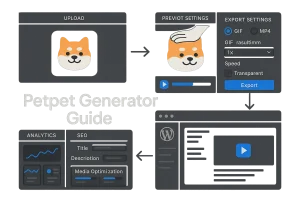
Step-by-Step Tutorial: Make a Petpet GIF on Desktop
The desktop workflow is the easiest place to learn how to use petpet generator tools because preview, cropping, and export review are simply easier on a larger screen. Most browser-based tools follow roughly the same path even if the interface looks different.
Prepare the source image first
Before uploading anything, make the image square. If the source is transparent, keep the subject centered with some safe margin around the top and sides so the motion does not clip. If the source is a photo, simplify it first. Increase contrast, reduce background clutter, and crop tightly around the face or object.
Good source candidates include mascot heads, simplified portraits, logos, icons, pets, reaction faces, and illustrated profile images. Weak source candidates include busy screenshots, panoramic images, low-resolution memes, and detailed photos with shadows or textured backgrounds.
Upload and preview
Current browser-based tools commonly support JPG, PNG, and GIF uploads, and at least one live generator advertises speed, resolution, and background controls, according to Petpet Generator. Upload the square file and inspect the preview before exporting. Check four things:
- Does the subject stay centered through the full loop?
- Are ears, hair, corners, or text getting clipped?
- Does the background edge look clean if transparency is enabled?
- Does the bounce feel natural at the current speed?
Adjust speed and size
For inline blog use, smaller is usually better. A compact loop near the native scale of the tool loads faster and hides GIF limitations more effectively. Increasing size often makes artifacts more visible. Increasing speed too far can make the animation jittery, while slowing it down can make it feel stiff. The right setting is the one that preserves the recognizable patting effect without stealing attention from the paragraph around it.
Export and validate
After export, open the file locally in a browser tab and check it at the actual size you plan to use on the page. This matters more than many bloggers think. They judge quality from a zoomed-in preview, then publish the file at a completely different scale. If the file looks sharp at 96 to 160 pixels on-page, it is usually doing its job.
Creators who work with other micro-graphic tools can apply the same production discipline used in an icon generator for bloggers workflow: simplify input, define output context, then optimize for the exact placement instead of maximum canvas size.

Mobile Workflow: Create, Preview, and Save on iOS/Android
Mobile creation is viable, but it introduces two recurring friction points: file access and export handling. Most complaints about a pet pet generator on mobile come from browser download behavior, not from the animation engine itself.
Best mobile workflow
Start with the source image in your photo library or files app. If transparency matters, prepare the PNG on desktop first or use a mobile background-removal app that actually exports transparent PNG correctly. Then upload through a modern browser, generate the animation, preview it once, and export directly to the device.
On iOS, the downloaded file may open in a preview layer instead of saving straight to Photos. In that case, use the share sheet and save to Files or Images depending on the browser path. On Android, the file usually lands in Downloads, but some browsers require explicit media permission or only show the completed file in the browser download manager.
How to preserve quality on mobile
Do not crop the image repeatedly across different apps. Every extra save can degrade a JPG source before it even reaches the generator. If possible, start from the final square crop and upload once. Also avoid sending the source image through messaging apps first, because auto-compression often softens edges.
Mobile review checklist
After saving, confirm the following before publishing:
the loop plays correctly in the gallery or file preview, the background remains transparent if expected, the file size is reasonable for your blog placement, and the GIF does not appear soft on a high-density screen. If it does, use a cleaner source image rather than just increasing output size.
Bloggers who create reaction-style assets for social snippets may also borrow ideas from a guide on an italicized text generator for social feeds, where the lesson is similar: small visual elements need clarity and context more than complexity.

Export Settings: GIF vs MP4, Size, Quality, Background
Choosing the right export is where bloggers either keep the asset useful or turn it into a performance burden. The real question is not whether GIF is popular. The real question is whether GIF is the right delivery format for the page context.
When GIF is the right choice
A petpet gif works best when the asset is small, inline, and used as a reaction or explanatory visual. If the animation sits beside text, inside a callout, near an author box, or in a compact comparison block, GIF is still practical. Wide compatibility outweighs inefficiency because the file stays small enough to manage.
When MP4 or WebM is the better choice
For larger on-page animations, MP4 or WebM is usually the better option. Web performance guidance from web.dev on video performance recommends replacing large animated GIFs with video in many scenarios because video is often more bandwidth-efficient. If a petpet effect is used as a featured visual, intro block, or larger embedded animation, convert it to video where the site stack supports it.
Background decisions
Transparent output is ideal when the GIF sits on cards, tinted sections, or custom themes. Solid background output is fine when the destination block already has a fixed background color and you want to avoid rough transparency edges. Decide the destination first. Export should match placement, not the other way around.
Practical size guidance
Keep small meme-style assets physically small on the page. The classic mistake is generating a tiny animation and stretching it with CSS. That magnifies every limitation of the format. On our side, this is one of the most common quality failures we see. If the asset needs to appear larger, render it in a format better suited to bigger display or rebuild the source art with simpler shapes and stronger contrast.
| Export choice | Best use case | Main tradeoff | Recommendation |
|---|---|---|---|
| GIF | Inline reactions, comment graphics, small blog illustrations | Limited colors, larger size than video for similar motion | Use when the asset stays small |
| MP4 | Featured visuals, larger embeds | No native transparency in the same way as GIF workflows | Prefer for bigger areas when transparency is not required |
| WebM | Performance-focused modern pages | Workflow support varies by CMS setup | Use if your publishing stack supports it cleanly |
The export decision should be driven by placement, scale, and bandwidth efficiency, not habit.
The comparison reflects the usual editorial pattern: GIF is stronger for compact expressive media, while video is stronger for larger motion blocks.
Troubleshooting: Not Saving, Crashes, Blurry Output, File Too Large
Most failures with a petpet meme generator fall into four buckets: browser handling, source-file issues, export settings, or publishing-layer mistakes.
Problem: the file does not save
This usually happens on mobile browsers, restrictive privacy settings, or when the download opens in a preview tab instead of saving automatically. Test a different browser, allow downloads, and use the file-share option if direct saving fails. If a tool generates the file but your browser does not store it, the generator is not necessarily the problem.
Problem: the page crashes or freezes
Large source files, oversized transparent PNGs, or low-memory mobile devices can cause this. Shrink the source image before upload. A petpet animation does not need a huge source canvas to look good. In fact, oversized source files usually slow processing without improving visible output.
Problem: the output is blurry
Blur usually comes from scaling too far beyond native resolution, uploading a poor source file, or using a detailed photo that loses clarity under GIF palette limits. The fix is not always increasing export size. Often the fix is a cleaner source with stronger outlines and less texture. A simple avatar will outperform a noisy photo in almost every petpet gif maker workflow.
Problem: the file is too large
Reduce dimensions, shorten loop complexity if the tool allows it, simplify the source image, or move to MP4/WebM for larger placements. If the animation is decorative rather than essential, use a static poster image with an optional linked animation instead of autoplaying a heavy file inline.
Problem: transparency looks jagged
This is often a palette issue, especially around soft edges, hair, fur, or anti-aliased borders. Test a solid background export that matches your blog card color, or clean the source edge in an editor before upload. Transparency works best with flat, well-cut shapes.
If you are testing multiple creative asset workflows, it helps to think in systems rather than one-off fixes. The same “source quality first” logic appears when using a 3D text generator for header graphics: output quality usually depends more on input discipline and destination context than on the tool label.

Best Practices for Blogs: Branding, Alt Text, Captions, Filenames
A petpet asset becomes useful in publishing only when it is treated like an editorial component, not just a downloaded meme. That means naming, metadata, placement, and branding choices should be deliberate.
Branding
Use petpet graphics sparingly and consistently. If your site voice is strict B2B, an overload of reaction GIFs weakens credibility. If your blog is community-driven or creator-focused, a mascot-based petpet sequence can strengthen identity. The asset should match tone, not fight it.
Filenames
Never upload files with generic export names such as final.gif, animation1.gif, or petpet-output.gif. Use descriptive filenames tied to the topic and placement, for example: petpet-generator-author-avatar.gif or petpet-gif-blog-mascot-transparent.gif. This improves media organization and can support image search context.
Alt text
The alt attribute is not the place to dump keywords. It should describe the image if it conveys meaning, or be intentionally empty if the animation is purely decorative. Guidance from web.dev on HTML images stresses that alt text serves users and search engines. For a meaningful animation, an example could be: “Animated blog mascot created with a petpet generator.” If it is purely decorative beside a heading, a blank alt may be the right choice.
Captions
Use captions only when they add context. A caption can explain why the animation is there, reinforce a joke, or label a feature callout. It should not just repeat the alt text. Good captions work as editorial microcopy, not metadata duplicates.
Placement logic
Small loops work best after a dense paragraph, inside a tip box, beside a community quote, or in an author note. They are weak as standalone fillers. On our view, this is the difference between a smart micro-asset and visual clutter. The tighter the relationship between the animation and the surrounding text, the more likely the asset improves engagement instead of distracting from reading.

SEO and Performance: Compressing GIFs, CDN, Lazy-Loading, Accessibility
Search performance is rarely improved by the mere presence of an animated image. It improves when the asset does not damage page experience and when the HTML around it is understandable to crawlers and assistive technologies. That is the right SEO frame for a petpet generator v2 or any similar tool.
Compression and delivery
Export as small as the placement allows. Then serve the file from a performant media stack, ideally with caching and CDN delivery if your site already uses it. Petpet GIFs are usually small enough that the biggest mistake is not raw size alone but poor accumulation: multiple decorative GIFs on one page, each loading eagerly.
Lazy-loading
Google documents lazy-loading as a valid performance practice, but it also warns that content should load when it becomes visible in the viewport and should not depend on user actions such as clicking or scrolling, according to Google’s lazy-loading guidance. If a petpet animation appears through a page builder widget or custom JavaScript, make sure the media URL is present in rendered HTML where applicable and not hidden behind a fragile interaction model.
Rendered HTML matters
Google also notes that image and video URLs should appear in the rendered HTML src attribute. This matters for bloggers using custom blocks, sliders, or animation libraries. A decorative asset buried behind unconventional loading behavior creates unnecessary indexing and rendering uncertainty.
Width and height
Explicit dimensions help reduce layout shifts. The same web.dev guidance recommends width and height attributes because missing dimensions can contribute to cumulative layout shift. This is especially relevant for animated media that may load after surrounding text. Even a small loop should reserve its space.
Accessibility decisions
Animated content should not be left on autopilot. Decide whether the asset is informative or decorative, write alt text accordingly, and avoid using motion as the only way to communicate meaning. If the animation illustrates a step, explain the step in adjacent text too.
| SEO/performance factor | Common mistake | Better practice |
|---|---|---|
| File delivery | Uploading multiple unoptimized GIFs | Keep assets compact and cacheable |
| Lazy-loading | Loading only after user-triggered actions | Load when media becomes visible in viewport |
| Rendered HTML | Hiding media behind custom JS only | Expose valid media URLs in rendered markup |
| Accessibility | Leaving default export names and vague alt text | Use intentional filenames and meaningful alt decisions |
For SEO, the best animated asset is the one that adds context without creating crawl, layout, or bandwidth friction.
The graphic shows the five checkpoints that matter most when a petpet file moves from creation to live publishing.
Use Cases and Ideas: Intros, Feature Images, Social Teasers, Community Posts
Petpet assets work best when used as micro-content with a clear editorial job. On blogs, that job usually falls into four patterns.
1. Intro reactions
A small animated mascot near the start of a post can soften a dense introduction. This works especially well in creator blogs, gaming sites, fandom media, product newsletters, or technical content with a community tone.
2. Community identity
If your blog has a mascot, recurring author avatar, or audience nickname, a petpet loop can function as a lightweight recurring brand marker. Used consistently, it becomes a recognizable visual shorthand.
3. Social teaser asset
Instead of relying only on a static featured image, you can use a petpet export as a teaser in social posts, comment threads, Discord communities, or email snippets. That gives the blog post a reaction-friendly companion asset without producing a full motion graphic.
4. Inline explanation
In tutorials about internet culture, profile customization, fandom design, or meme tools, a petpet animation can show the output directly instead of describing it abstractly. That is where the format is strongest: direct, small, and visually self-explanatory.
For ideation across lightweight visual assets, bloggers often combine workflows from adjacent tools. A useful companion perspective is a random image generator for creative inspiration, especially when you need concept directions before building the final meme or reaction asset.
We would add one practical note here: the best use cases are the ones where the animation has a job. If it is only there to fill space, readers feel that immediately.
Tool Options: Petpet Generator V2 and Alternative GIF Makers
The term petpet generator v2 gets used loosely. Sometimes it means a newer interface version, sometimes a specific site, and sometimes just a variation of the same effect. For bloggers, the label matters less than the capabilities.
Core features to evaluate
Look for upload format support, transparent background handling, speed adjustment, resolution control, preview accuracy, and reliable save behavior across desktop and mobile. If the tool positions itself as free, cross-device compatible, and without watermarking, that usually signals a casual creator product rather than a pro animation environment. For petpet workflows, that is usually enough.
When alternative GIF makers make more sense
If you need layered text, more controlled timing, or custom animation sequences beyond the classic hand-pat loop, a general GIF editor or short-form video tool may be the better choice. A dedicated pet pet gen tool is efficient when you want exactly one effect. It becomes limiting when the animation needs to serve a more editorial or branded purpose.
Decision criteria
Choose a dedicated tool if speed and simplicity matter most. Choose a broader GIF or video editor if you need multiple scenes, captions in-frame, advanced transparency handling, or multi-format publishing. On our side, the rule is simple: use the narrow tool for narrow tasks. Once branding or storytelling becomes more demanding, the dedicated tool stops being enough.
That same decision logic appears in adjacent visual tooling. If your content mix also includes symbols, markers, and UI-style visuals, it helps to compare with an icon generator for bloggers mindset: use the simplest tool that reliably supports the publishing outcome.
Automate Publishing to WordPress: From Asset to Post with Autopilot SEO
Creating the asset is usually the easy part. The slower part is operational: drafting the post, inserting media, writing metadata, organizing internal links, structuring headings, and publishing consistently to WordPress. That is where process automation matters more than another standalone meme tool.
Teams that publish at scale need a workflow where the visual asset, semantic plan, article structure, on-page SEO, and WordPress publishing step are connected. Instead of producing a petpet GIF manually and then handling the rest of the post in separate tools, marketers can reduce friction with a systemized pipeline.
A practical option is SEO Autopilot, which is designed to automate SEO article production from topic planning to WordPress publishing. For blogs that regularly create niche explainers, creator-tool tutorials, and evergreen organic content, that kind of workflow reduces repetitive editorial work while keeping control over structure, keyword coverage, and publish-ready formatting. The petpet asset remains a supporting media element, but the surrounding content operation becomes more scalable.
This matters most for agencies, content teams, and site owners who do not want each post to become a manual assembly task. The commercial advantage is not “AI makes the meme.” The advantage is that the content system can generate, structure, optimize, and publish the article around the asset more efficiently.
Legal and Ethics: Rights, Credits, and Safe Meme Use
Petpet graphics may look casual, but rights still matter. If the source image is your own avatar, mascot, commissioned art, or licensed brand asset, usage is usually straightforward. If the source comes from fan art, social media profiles, or third-party creators, permission and attribution may be necessary depending on the context and license.
Commercial blog use
The more commercial the blog, the stricter the standard should be. A hobby-style meme culture does not automatically carry over into sponsored posts, brand blogs, affiliate content, or monetized newsletters. If the asset supports a commercial publication, use rights-cleared source materials.
Attribution and community norms
Even when legal risk is low, community trust matters. Credit creators where appropriate, especially in fandom or art-driven spaces. Avoid removing signatures, altering commissioned work without permission, or republishing community avatars as if they were your own creative assets.
Safe use policy
A useful internal standard is simple: own the source, license the source, or get permission for the source. If none of those is true, do not publish the asset as part of your content workflow.
We consider this the non-negotiable part. The lighter the meme format looks, the easier it is for teams to underestimate rights risk. That is a mistake, especially for monetized blogs.
We think the real value of a petpet workflow is not novelty but efficiency. The format works when it stays small, purposeful, and technically clean; it fails when bloggers try to stretch it into a hero visual, ignore file handling, or publish it without metadata discipline. In practice, the strongest results come from simple source art, compact exports, and placements that support the surrounding text rather than compete with it. If a team treats petpet assets as editorial micro-media instead of throwaway memes, they can add character without hurting performance.
Our прогноз is fairly straightforward: lightweight animated assets will keep a place in blogs, newsletters, and community content, but the bar for performance and accessibility will keep rising. We also expect more creators to pair tools like a petpet generator with automated publishing workflows, where the animation is just one small asset inside a larger SEO system. The winners will be the teams that keep the fun while staying disciplined on delivery.
FAQ
How do I save a Petpet GIF on mobile?
Generate the file in a mobile browser, then save it through the browser download flow or share sheet. If it opens in preview instead of saving, store it in Files or Downloads first and then move it to Photos if needed. If you are specifically searching for petpet generator how to save steps, that is usually the fix.
Why is the Petpet generator not exporting or crashing?
The most common causes are oversized source files, limited mobile memory, or browser download restrictions. Reduce the source image size, try a different browser, and avoid uploading large transparent files that do not improve visible output.
What size and format should I use for Petpet GIFs on a blog?
Use GIF for small inline reaction graphics and keep the displayed size compact. If the animation needs to appear larger on the page, MP4 or WebM is usually the better performance choice than stretching a small petpet gif export.
Is the Petpet generator free and safe to use?
Many browser-based petpet tools are free, and at least one current generator explicitly markets itself as free and cross-device compatible. Safety depends on the site itself, so use reputable tools, avoid unnecessary permissions, and do not upload sensitive images.
Can I create a transparent-background Petpet GIF?
Yes, if the tool supports transparent PNG input and preserves transparency in export. Transparent PNGs are usually the best input for blog use because they blend more cleanly into colored layouts and content cards.