
Manual table building is one of the fastest ways to slow down an otherwise efficient publishing workflow. A good latex table generator cuts repetitive formatting, shortens cleanup time, and helps bloggers move from spreadsheet data or screenshots to consistent, publication-ready tables without writing every cell by hand.
For bloggers, technical writers, and content teams, the real value is not just speed. It is control. Tables sit where data accuracy, readability, and SEO-friendly publishing meet. If the exported code is unstable, captions break, numeric alignment looks uneven, or special characters trigger compile errors, the tool saves a few minutes and creates review debt later. We see this often in production: the best workflow treats the generator as an acceleration layer, not a replacement for LaTeX basics.
This matters even more when one article includes comparison tables, feature matrices, benchmarks, pricing breakdowns, or structured research notes. In those cases, the gap between a raw export and a clean editorial workflow shows up immediately.
What a LaTeX table generator is and when to use it
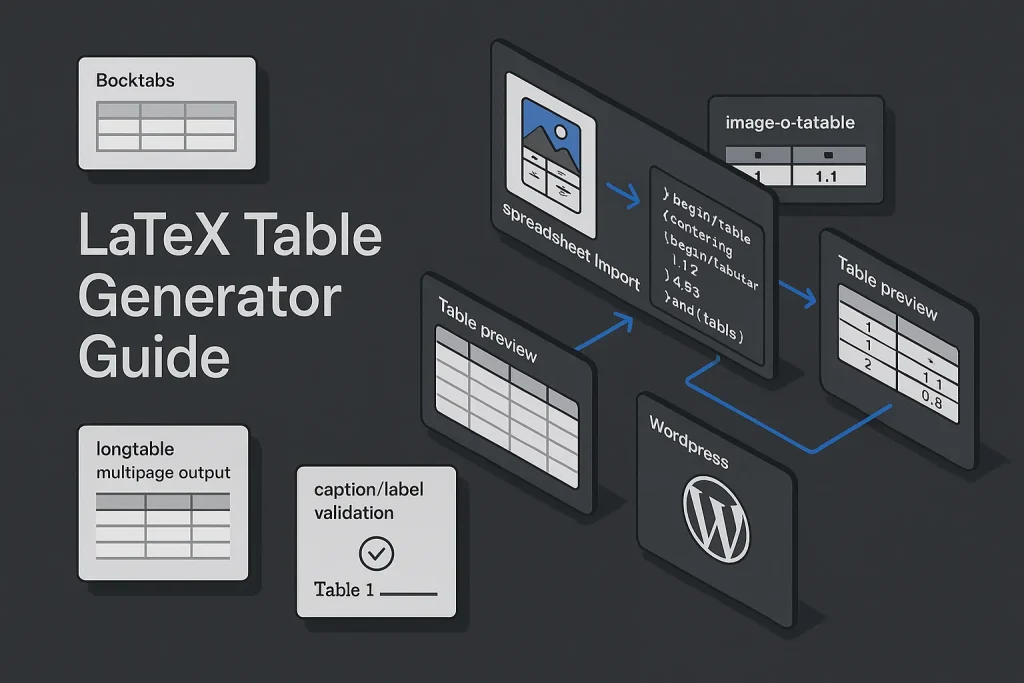
A latex table generator is any tool that helps you create LaTeX-compatible table code from structured input. That input may come from manual cell entry, pasted spreadsheet data, CSV files, images, PDFs, or natural-language prompts. The output is usually based on the tabular environment, sometimes extended with tabularx, longtable, booktabs, or multirow-related packages, depending on the tool.
According to Overleaf documentation, users can create tables in four practical ways inside a project: using the Visual Editor insert tool, pasting tables from another document, writing raw LaTeX code, and using Overleaf’s own generator. That framing is useful. It puts the generator in its proper place: one option inside a broader workflow, not the whole workflow.
You should use a generator when the source data already exists elsewhere, when the table structure repeats, or when formatting is the real bottleneck. Typical cases include product comparison posts, affiliate tables, benchmark roundups, spec sheets, method comparisons, and academic-style blog content that needs consistent captions and references.
You should not rely on a generator alone when the table has nested structures, highly customized spacing rules, fine-grained alignment logic, or large multipage output that needs human review. In those cases, generator output is just the first draft of code. On our reading, that is not a weakness. It is the realistic way these tools are meant to be used.

Core features to look for (spreadsheet import, Booktabs, multirow, alignment)
Not every online latex table generator is equally useful. Plenty of basic tools can create cells and borders. Far fewer support the features that matter in real publishing workflows.
Spreadsheet and paste import
Import quality determines how much cleanup comes next. If a tool accepts pasted content from Excel, Google Sheets, webpages, or word processors, it reduces re-entry errors. Overleaf documents that users can paste tables from webpages, word processors, and spreadsheets directly into a project and then switch to the Code Editor for refinement. For bloggers moving fast, that is genuinely practical.
Booktabs-ready export
Good LaTeX tables usually avoid heavy vertical rules and default grid noise. They use cleaner horizontal rules via the booktabs package. CTAN’s booktabs package page describes it as a package for publication-quality tables and notes longtable compatibility since version 1.61. CTAN currently lists the package at version 1.61803398, which tells us something simple but important: this is a mature dependency, not an unstable add-on.
Numeric alignment
For pricing columns, percentages, dimensions, or benchmark values, decimal alignment is a quality marker. A generator that exports plain centered or left-aligned numbers may be quick, but it is not editorially finished. CTAN’s siunitx package page states that the package provides automated number and unit processing plus explicit support for alignment in tabular material. CTAN currently lists version 3.4.14, so it remains a current and maintained option for modern workflows.
Support for merged cells and multirow structures
Feature comparison tables often need grouped headers, section breaks, or multirow labels. A tool that cannot model those structures forces manual repair in code. Some generators claim this support, but the output quality varies a lot. We would always check for misplaced ampersands, missing line breaks, and inconsistent column counts before trusting the export.
Caption and label handling
Many tools stop at the table body. Bloggers still need wrappers for table, caption, and label if they want internal references and clean PDF or article exports. This matters more than it seems, especially in long technical content where the table is cited later in the text.
Image-to-table OCR
A latex table generator from image can be useful for digitizing screenshots, scanned reports, or PDF tables. But OCR convenience should not be mistaken for publication readiness. The best use case is structure recovery, not one-click perfection.
These figures do not measure table quality on their own. They do show that the core LaTeX ecosystem for serious table work is stable and actively maintained. That stability is a big advantage if you publish repeatedly rather than build one table and move on.
Step-by-step workflow: from CSV/Excel data to clean LaTeX code
The most reliable workflow starts before the generator. Clean source data produces cleaner code. Messy spreadsheets produce tables that compile badly, overflow columns, or need far more manual correction than most people expect.
Step 1: Normalize the source data
Before export, remove merged spreadsheet cells unless they are semantically necessary, standardize date and number formats, delete empty trailing columns, and make sure every row follows the same logical column structure. If your source has inconsistent decimal separators or mixed unit formats, fix that first.
Step 2: Choose the right generator path
If the data is already structured in rows and columns, use a latex table generator from excel or a paste-based converter. If the data exists only in a screenshot or scanned PDF, use an OCR-based route. If the table is simple and short, a latex online table editor may be faster than importing and cleaning external data.
Step 3: Export to baseline LaTeX
The first export should aim for structural correctness, not visual perfection. Check column counts, row separators, escaped characters, and whether the tool outputs tabular, tabularx, or a wrapped floating environment.
Step 4: Add packages deliberately
Do not copy random package suggestions from multiple generators into the same project. Add only what the table actually needs. Common examples include booktabs for clean rules, siunitx for numeric alignment, longtable for page breaks, multirow for grouped row labels, and array for custom column specifications.
Step 5: Refine spacing and alignment
Now turn a noisy table into a publication-grade one. Remove vertical rules in most cases, replace \hline with \toprule, \midrule, and \bottomrule, then align numeric columns properly. On our side, this is where average output starts to look professional.
Step 6: Add caption, label, and placement strategy
Bloggers who also generate PDFs or technical assets should wrap the table cleanly and think about references early. It saves refactoring later.
Step 7: Compile twice and review output
Overleaf’s help pages note that labels and cross-references for floats such as tables depend on captions and that projects generally need two compilation passes for references and page numbers to resolve correctly. It is a small detail, but an important one. A table that looks fine in code can still show broken references on the first pass.
| Workflow stage | Primary goal | Typical risk | Recommended fix |
|---|---|---|---|
| Source cleanup | Consistent rows and columns | Merged cells and mixed formats | Normalize structure before export |
| Generator export | Valid baseline code | Broken column counts | Check ampersands and row endings |
| Styling | Readable, publication-quality layout | Heavy borders and uneven numbers | Use booktabs and siunitx |
| Referencing | Stable caption and label system | Undefined references | Add caption before label and compile twice |
A clean workflow reduces both formatting time and debugging time. That distinction matters when you publish often. We would go further: in repeated content operations, it matters more than the generator brand itself.

Converting Excel to LaTeX tables: practical methods and tools
For most bloggers, Excel or Google Sheets is the real starting point. A create latex table workflow usually means converting a spreadsheet into valid code with minimal handwork.
Method 1: Direct paste into a project
This is the quickest route for small tables. If you use Overleaf, documentation indicates that spreadsheet content can be pasted into a project and then refined in the code editor. It works well when the structure is already clean and you mainly need a first-pass conversion.
Method 2: Use an online latex table generator
A dedicated online latex table generator often gives better control over alignment, borders, and wrapper output. These tools are useful when you want a quick preview and do not need the full manuscript context while generating.
Method 3: Export CSV and rebuild with intent
For complex or repetitive content, converting source data into CSV and then using a toolchain or script may be more reliable than pasting styled spreadsheet content. It is slower at first. In return, you get a more repeatable workflow, which usually pays off after a few publishing cycles.
Method 4: Use AI-assisted generation for structure drafting
Overleaf states on its AI Table Generator page that users can generate LaTeX tables from natural-language prompts or an uploaded image. The same page notes that the feature can be tried for free, while unlimited usage requires the AI Assist add-on. For bloggers, this is most useful when the structure is obvious but not yet typed out.
The right method depends on the shape of your work. If you publish occasional comparison tables, paste-and-clean is usually enough. If you create data-heavy posts every week, a more standardized pipeline is worth the setup cost. On our side, that is the dividing line between convenience and actual process design.
The chart visualizes a simple editorial fact: modern table workflows are not limited to writing raw code from scratch.
From image to LaTeX table: OCR workflow, limits, and clean-up tips
A latex table generator from image solves a real problem: valuable tables often exist only as screenshots, PDFs, or scanned reports. OCR-based tools can reconstruct rows, columns, and even math-heavy cell content. That said, OCR is a structural shortcut, not a trust layer.
Mathpix’s table-to-LaTeX workflow page describes extraction from images, screenshots, and PDFs and states that the output can be generated as tabular or tabularx with math support inside cells. It also claims support for merged cells, multi-row headers, and nested structures. Those capabilities are useful, but bloggers should assume that complex OCR output still needs inspection.
Where OCR works well
High-contrast images, simple borders, readable type, and clean row separation usually convert well. Tables with standard numeric entries and limited merged headers are strong candidates.
Where OCR fails or degrades
Problems usually appear when the source image is low resolution, skewed, compressed, partially cropped, or cluttered with footnotes and spanning labels. OCR can misread decimal punctuation, merge adjacent cells, split one row into two, or mishandle symbols like percent signs and underscores.
Best clean-up routine after OCR
- Check column counts line by line.
- Verify every special character that has meaning in LaTeX.
- Inspect merged headers manually.
- Replace raw horizontal rules with booktabs commands if appropriate.
- Rebuild numeric columns with siunitx when alignment matters.
No authoritative source in the provided research set gives a benchmark percentage for OCR accuracy or compile-success rates across all LaTeX tools. That absence matters. It means bloggers should judge OCR tools operationally: by cleanup time, structure recovery, and final output quality, not by vague accuracy claims. We think that is the only sensible standard.

Captions, labels, and cross-references that compile cleanly
Tables become easier to maintain when they are treated as referenceable objects rather than isolated blocks of code. This is especially useful in long articles, white papers, technical lead magnets, and documentation-style blog posts.
Use caption before label
In most workflows, the label should come after the caption so the correct table number is captured. If labels are added carelessly or captions are omitted, references may fail or resolve unpredictably.
Understand the float dependency
Overleaf’s guidance on references makes a practical point: labels and cross-references for floats such as tables depend on captions, and projects generally need two compilation passes for references and page numbers to resolve correctly. This trips up a lot of newer users because the first compile may show placeholder marks or undefined references even when the structure is almost right.
Keep caption text editorial, not merely descriptive
A strong latex table caption should help the reader understand why the table exists, not only what it contains. For example, “Feature comparison of OCR-based LaTeX table workflows” is more useful than “Table 1.” For blog content, descriptive captions also improve downstream reuse if you later turn the article into a PDF or downloadable asset.
For teams that work across formats, this kind of consistency matters. The same operational discipline used in AI-assisted outline workflows also applies to technical assets like tables: structure first, then scale.
Styling best practices: Booktabs, siunitx, and column alignment
Most generator output looks acceptable only until it sits beside a professionally typeset table. Then the difference is obvious. Usually it comes down to rule design, spacing, and numeric alignment.
Booktabs for visual hierarchy
booktabs is the default recommendation for cleaner tables because it produces restrained horizontal rules and discourages clutter. That fits modern publishing standards far better than full-grid tables packed with vertical lines.
siunitx for numeric precision
If your table compares prices, percentages, response times, word counts, file sizes, or rates, decimal alignment improves scanability immediately. That is where siunitx adds real value beyond a generic export.
Choose column types intentionally
Text-heavy columns often need fixed-width behavior or paragraph-style wrapping. Short categorical data may fit standard left alignment. Numeric series should not share the same alignment strategy as prose descriptions. A good latex table template reflects that difference from the start.
| Styling issue | Weak output | Better practice |
|---|---|---|
| Borders | Dense grid with vertical lines | Booktabs horizontal rules only |
| Numbers | Centered or irregular decimals | siunitx alignment by decimal point |
| Headers | Verbose, uneven labels | Short labels with units standardized |
| Text columns | Overfull lines | Controlled width or wrapping columns |
Good styling is not decorative. It reduces cognitive load and improves editorial credibility. We would argue it also affects perceived trust more than many teams realize.
The values are version identifiers rather than performance scores, but they highlight that table styling in LaTeX depends on mature, maintained packages.

Handling long tables: longtable, multipage floats, and landscape layouts
As soon as a table exceeds one page, many simple generators stop being enough. Bloggers creating software comparisons, catalog-style roundups, research appendices, or long benchmark tables need a multipage strategy.
CTAN describes longtable as the package that allows tables to continue across page boundaries while keeping column widths consistent on successive pages. CTAN currently lists version 4.27 dated January 28, 2026, which indicates continued maintenance as part of the required latex-tools bundle.
Why longtable matters
Without multipage support, large tables either overflow, become unreadably compressed, or force awkward manual splitting. longtable lets you preserve continuity across pages while repeating structural elements in a controlled way.
Important limitation
The same CTAN documentation warns that longtable modifies the output routine and therefore does not work in multicolumn environments and fails on twocolumn pages. Bloggers repurposing content into journal-like layouts or compact PDF templates should know this before committing to an export path.
Landscape and width management
When a table is too wide rather than too long, the better fix may be redesign rather than brute-force shrinking. Landscape layouts, column pruning, abbreviations, or splitting one large comparison into two smaller tables often produce more readable results than aggressive scaling. On our view, this is a common editorial mistake: teams try to save one giant table when two focused ones would work better.

Escaping special characters and fixing common compile errors
Most compile failures in generated tables are not caused by LaTeX itself. They come from imported content with special characters or from structure that changed during conversion.
Common character issues
Ampersands, percent signs, underscores, dollar signs, hash signs, and backslashes require special handling in many contexts. Spreadsheet exports and OCR workflows often carry these characters into cells without proper escaping.
Common structural issues
Miscounted ampersands, missing row terminators, malformed multicolumn spans, and inconsistent column specs are typical failure points. OCR can also insert phantom spaces or line breaks that are hard to spot but still break compilation.
Practical debug order
When a generated table fails, debug in this order: check the column specification, count separators in each row, isolate problematic cells with symbols, remove advanced styling temporarily, then reintroduce packages one by one if needed.
A useful operational rule is to compile the simplest possible version first. Start with valid structure in plain tabular, then add captioning, then styling, then longtable or advanced alignment. This staged approach shortens troubleshooting time significantly. We have seen it save far more time than hunting for a supposedly smarter generator.
Comparing popular generators (web apps, Overleaf add-ons, offline editors)
There is no universally best tool. The right choice depends on source format, editing style, frequency of use, and how much cleanup your workflow can absorb.
Web-based generators
These are fast, accessible, and usually enough for bloggers creating short comparison tables. A typical latex online table editor gives immediate cell-level editing and code export, but may offer limited support for advanced package-aware output.
Overleaf-integrated workflows
The biggest advantage here is context. You generate and refine inside the same project where the table will compile. This reduces environment mismatch and speeds iteration. Overleaf’s documentation also reinforces that the tabular environment remains the default foundation for basic LaTeX tables, which matters because most tools still export tabular-based code. If you specifically want a latex table generator overleaf workflow, this in-project setup is usually the most practical path.
Offline editors and scripted pipelines
These are better for repeatability, version control, and bulk content operations. They are especially useful when table creation is part of a larger automated content or documentation pipeline.
| Tool category | Best for | Main limitation |
|---|---|---|
| Web app generator | Quick table drafting and export | May require more manual package-aware cleanup |
| Overleaf generator or add-on | In-project iteration and faster compile feedback | Feature access can depend on subscription level |
| Offline/scripted workflow | Repeatable production pipelines | Higher setup cost for casual users |
| OCR-based image converter | Recovering tables from screenshots or PDFs | Human cleanup still required for complex structures |
The strongest selection criterion is not novelty. It is how consistently a tool reduces total time from source data to final approved output. That is the metric we would use in any real content operation.
Performance, accessibility, and reproducibility considerations
In production workflows, a table is not finished when it compiles. It is finished when it is readable, maintainable, and reproducible by another editor or by your future self.
Performance
Large or over-engineered tables slow review cycles. Excessive package usage, deeply nested formatting, or image-derived noise raises maintenance cost. Keep the code as simple as the content allows.
Accessibility
For bloggers who publish across web and PDF, accessibility starts with structure. Clear headers, consistent labels, and meaningful captions improve the odds that the same information can be transformed into accessible HTML tables later. If your publishing process includes WordPress, semantic recreation of tables may matter as much as the LaTeX source itself.
Reproducibility
Generated output should be standardized. Decide how your team handles captions, labels, package declarations, number formatting, and special-character escaping. That reduces inconsistency across posts and avoids silent regressions when multiple people contribute.
One more practical note: if your workflow also includes visuals, a latex chart generator may look like the next obvious step. Sometimes it is. But on our experience, tables and charts should not share the same approval logic by default. Tables need structural precision; charts need interpretive clarity. Mixing those review paths usually creates unnecessary friction.
The point of this chart is functional separation: table quality usually depends on combining stable tools with clear responsibilities rather than expecting one generator to do everything.

Scaling and automation: publishing table-rich posts to WordPress with Autopilot SEO
Once the table creation process is stable, the next bottleneck is rarely code generation alone. It is the broader editorial pipeline: keyword planning, article structure, content drafting, internal linking, media handling, and publication. That is where automation becomes commercially relevant.
For teams producing technical or data-heavy content at scale, it helps to connect table creation with a larger SEO workflow rather than treating each article as an isolated document. A platform such as SEO Autopilot is useful in that context because it focuses on the full path from topic planning and semantic structure to draft generation and WordPress publishing. If your table-rich posts are part of a repeatable content program, this reduces operational fragmentation.
That is also the practical extension of ideas covered in content machine workflows for SEO agencies and in idea generation systems that preserve SEO focus. The generator solves one formatting layer. The publishing system solves throughput, consistency, and scheduling.
For bloggers or agencies that regularly create comparison posts, SaaS roundups, product matrices, or technical explainers, the soft-sell case is straightforward: use the best tool for table generation, then use a broader automation layer to package that work into a scalable content operation. We think this is where many teams underestimate the real cost. The table is rarely the hardest part. The repeatable publishing system is.

Templates and a pre-publish checklist for bloggers
A generator becomes much more useful when paired with a repeatable review standard. The goal is not to memorize every package nuance. The goal is to eliminate predictable mistakes before publication.
Simple template logic
A working latex table template for bloggers should define the wrapper pattern, preferred rule style, numeric alignment convention, caption style, label naming scheme, and fallback path for long or wide tables. This saves time across every article that includes structured data.
Pre-publish checklist
- Source data is normalized and free of accidental merged cells.
- The generated code compiles cleanly in its simplest form.
- Caption is descriptive and placed before the label.
- References resolve after two compile passes.
- Numbers are aligned consistently where comparison matters.
- Special characters inside cells are escaped correctly.
- Long tables use longtable only when the page layout supports it.
- OCR-derived tables have been line-checked for structure.
- Package usage is minimal and intentional.
- If the table will be republished on the web, the HTML equivalent preserves clarity.
For technical bloggers, this kind of checklist is more valuable than chasing a perfect one-click generator. Stable publishing comes from standardized review habits.
We think the core takeaway is straightforward: a latex table generator is most useful when it fits into a disciplined workflow, not when it promises magic. The tools that save the most time are usually the ones that produce predictable, editable output and leave room for human review. For businesses, the winning approach is rarely “generate faster at any cost.” It is “reduce cleanup, reduce errors, and keep the process repeatable.”
Looking ahead, we expect better OCR, tighter Overleaf integrations, and more AI-assisted structure drafting. But the fundamentals will not change much. Clean source data, stable packages, and editorial QA will still decide whether a table is publishable or just generated.
FAQ
What is the fastest way to create a LaTeX table from Excel?
The fastest route is usually to clean the spreadsheet first, then paste it into an editor or use a latex table generator from excel. For small tables, direct paste into an Overleaf project or a dedicated online latex table generator is often enough, followed by light cleanup in code.
How do I add a caption and label to a LaTeX table?
Wrap the table in a proper table environment, add \caption{...}, then place \label{...} after the caption. If you want references to compile correctly, run the project twice because table references usually need multiple compilation passes.
Which online LaTeX table generator is best for academic papers?
The best choice is the one that exports clean, editable code and works well with booktabs, siunitx, and longtable when needed. For academic-style workflows, an online latex table generator tied to a latex table generator overleaf workflow is often more practical than a basic standalone tool because it shortens compile-review cycles.
How can I align numbers by decimal point in LaTeX tables?
Use the siunitx package and define numeric columns with its alignment features. This is more reliable than manual spacing and produces cleaner comparison tables, especially for prices, percentages, and benchmark values.
Can I convert a screenshot of a table into LaTeX code?
Yes, a latex table generator from image or OCR-focused tool can extract structure from screenshots, PDFs, or scans. Still, review the output manually because OCR can misread merged cells, symbols, decimal separators, and line structure.