

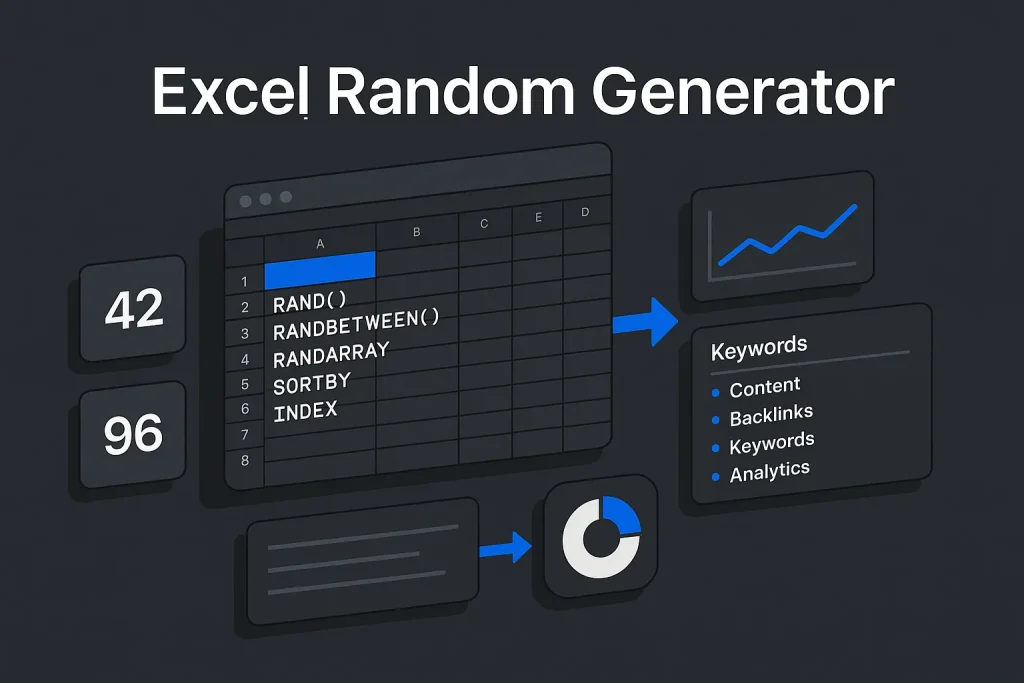
Manual randomization looks easy right up until the sheet starts recalculating, values keep jumping, and your selection logic has to survive different Excel versions, ranges, and list-based datasets. That is exactly why an excel random number generator matters. Excel gives you several paths: RAND() for decimals, RANDBETWEEN() for whole numbers, RANDARRAY() for scalable dynamic arrays, and lookup-based patterns for list selection. On paper they all look similar. In practice, they solve different problems in data analysis, QA sampling, scenario testing, classroom datasets, and even content operations where keyword sets, titles, or asset groups need controlled shuffling.
Most formula-level randomization issues in Excel are not really about producing a number. They are about choosing the right method, controlling recalculation, avoiding duplicates when needed, and keeping the output usable downstream. We see this constantly in real spreadsheets. A quick formula is easy; a reliable workflow is not.
Why and when to use an Excel random number generator
An excel random number generator is useful when you need synthetic data, randomized test values, shuffled records, controlled ranges, or a quick sampling method inside a spreadsheet you already use every day. Analysts use it to stress-test dashboards. Marketing teams use it to sample URLs, titles, or keyword groups. QA teams use it to generate edge-case inputs. Educators use it to build exercises or test data without exposing real records.
The use case should decide the formula. Not the other way around.
- Decimals between 0 and 1: use excel rand via
=RAND(). - Integers in a fixed range: use excel randbetween via
=RANDBETWEEN(bottom, top). - Large spilled ranges: use
=RANDARRAY(...). - Random pick in excel from a named list: combine
INDEXwithRANDBETWEEN. - No-repeat random ordering: combine
SORTBYwithRANDARRAYor sort helper values generated by RAND. - Normally distributed samples: combine
RAND()withNORM.INV().
For business users, the real split is operational. A one-cell random number excel formula is fine for a one-off task. A reusable model needs compatibility rules, reproducibility, and a clean way to freeze outputs once the randomization is done. On our side, that is the point where “just use RAND” stops being good advice.
The table below maps the core Excel randomization tasks to the most practical formula pattern.
| Task | Best function or pattern | Output type | Compatibility note |
|---|---|---|---|
| Decimal random values | RAND() |
Real number from 0 to less than 1 | Broadly available |
| Integer range | RANDBETWEEN() |
Whole number, inclusive range | Broadly available |
| Large random grid | RANDARRAY() |
Spilled array of decimals or integers | Needs newer Excel with dynamic arrays |
| Random item from list | INDEX()+RANDBETWEEN() |
One value from a range | More backward-compatible than XLOOKUP |
| Shuffle list without repeats | SORTBY(list,RANDARRAY(...)) |
Random order | Dynamic-array Excel versions |
For older files and mixed-version teams, formula choice is often a compatibility decision as much as a data decision. We would not ignore that. Plenty of “smart” formulas break the moment a client opens the file in the wrong environment.

How Excel randomness recalculates and how to freeze results
The behavior that matters most here is volatility. Microsoft documents that the RAND function recalculates whenever the worksheet recalculates. The same applies to RANDBETWEEN. So your numbers are not stable unless you deliberately convert or isolate them.
That affects three very common scenarios:
1. Random values keep changing while you edit the workbook.
Any recalc event can update them. Even a harmless edit elsewhere may change your sample.
2. Downstream formulas reference moving targets.
If a lookup, chart, or conditional rule depends on a volatile random cell, the visible result can shift every time the file recalculates.
3. You need a one-time randomized output.
A QA batch, test user IDs, or a shuffled content list usually should be frozen once generated.
Manual recalculation with F9 can also trigger new results. Useful when you want a fresh sample. Annoying when you do not.
Ways to freeze random results
The simplest method is still the best one:
- Generate the random numbers or randomized list.
- Copy the cells.
- Use Paste Special → Values.
- The current result remains fixed as static data.
You can switch calculation mode to manual during setup, but on our side we treat that as a higher-risk option for most users. It is too easy to leave unrelated formulas stale and not notice. In operational spreadsheets, static conversion is safer, cleaner, and easier to audit.
If you need both live and frozen outputs, keep two areas: one formula-based working range and one final values-only range. That small separation prevents a surprising amount of confusion in collaborative workbooks.
For stable analysis, treat random formulas as temporary generators and convert outputs to values when the randomization phase is complete. We consider that a baseline habit, not an advanced trick.

RAND(): generate decimal numbers between 0 and 1
The excel rand function is the default tool for generating a decimal value. Microsoft states that RAND() returns a uniformly distributed real number greater than or equal to 0 and less than 1, and it takes no arguments. That makes it the simplest excel formula to generate random numbers when you need probabilities, simulation inputs, or normalized values.
Basic syntax:
=RAND()
Typical uses:
- Generate probabilities for simulations.
- Create decimal test values for metrics or model inputs.
- Drive custom range formulas.
- Support random sort keys for shuffling.
Microsoft’s documented pattern for a custom decimal interval is =RAND()*(b-a)+a. According to Microsoft’s RAND documentation, this transforms the native 0-to-1 result into any interval you define.
Examples of RAND in practical use
Random decimal between 10 and 20=RAND()*(20-10)+10
Random decimal between -5 and 5=RAND()*(5-(-5))+(-5)
Equivalent: =RAND()*10-5
Random percentage between 0% and 100%=RAND()
Then format the cell as Percentage.
Rounded decimal output=ROUND(RAND()*(100-50)+50,2)
This returns a two-decimal result from 50 to 100.
When RAND is the right choice
Use random number excel formula patterns based on RAND when decimals are acceptable or required. It is better than RANDBETWEEN() for synthetic rates, scores, or distribution inputs that should not be restricted to whole numbers.
It is also useful as a helper for list shuffling. A common legacy pattern is to add a RAND helper column next to a list, then sort the list by that column. In newer Excel versions, SORTBY and RANDARRAY give you a cleaner version of the same logic.
On our view, RAND is underrated because people think of it as “just a decimal generator.” In reality, it is the base layer behind many flexible random excel formula setups.

RANDBETWEEN(): generate integers within a range
If your target output has to be a whole number, excel randbetween is usually the right answer. The syntax is simple:
=RANDBETWEEN(bottom, top)
Microsoft documents that the function returns a random integer that includes both endpoints. So =RANDBETWEEN(1,100) can return any integer from 1 through 100. This is the most direct create random number in excel method for IDs, batch assignments, sample numbers, or quiz values.
Because the result is inclusive, endpoint handling is straightforward. That is why most searches around excel random number between range land here first.
Examples of RANDBETWEEN
Random whole number from 1 to 100=RANDBETWEEN(1,100)
Random four-digit code=RANDBETWEEN(1000,9999)
Random number from 50 to 75=RANDBETWEEN(50,75)
Random month number=RANDBETWEEN(1,12)
Random day offset for test dates=TODAY()+RANDBETWEEN(1,30)
For integer-only tasks, this is usually better than wrapping RAND inside INT or ROUND. The intent is clearer, and maintenance is easier. We would pick readability here every time.
Common mistakes with RANDBETWEEN
Expecting uniqueness.RANDBETWEEN() does not prevent duplicates. If you fill it down 100 rows, repeated numbers are possible and completely normal.
Forgetting recalculation.
Like RAND, it is volatile and changes on recalc.
Using it for list randomization without indexing logic.
It returns numbers, not items. To select from text values, combine it with a lookup or index function.
The size of the range changes the character of the output, not the mechanics of the formula. That sounds obvious, but it is where many bad test datasets start.

Pick random items from a list (INDEX/XLOOKUP + RANDBETWEEN)
For text values, URLs, names, categories, or keywords, a number alone is not enough. You need an excel random number generator from list pattern. The most compatible version uses INDEX with RANDBETWEEN:
=INDEX(A2:A11,RANDBETWEEN(1,ROWS(A2:A11)))
This formula generates a random row position and returns the item at that position. Microsoft’s INDEX function documentation confirms that INDEX returns the value at a specified position in an array or range, which makes it ideal for a random selector in excel.
This is usually the best answer to “how do I make a random pick in excel from a list?” It is simple, readable, and works in older Excel versions too.
Example: random keyword from a list
If cells A2:A6 contain:
technical seo
internal linking
content audit
keyword clustering
wordpress seo
Use:=INDEX(A2:A6,RANDBETWEEN(1,ROWS(A2:A6)))
Each recalculation returns one random keyword.
This same pattern works well for editorial ideation. A team that manually rotates topic pools can do it in a worksheet, but if the real objective is pipeline automation, a dedicated workflow scales better. For related ideation mechanics, see this guide to a random themes generator for blog ideas.
Can XLOOKUP be used?
Yes, but usually there is no compelling reason to prefer it for a simple random pick. XLOOKUP is available only in newer Excel versions, while Microsoft notes in its XLOOKUP documentation that it is not available in Excel 2016 or Excel 2019. INDEX is more backward-compatible, and that matters in shared corporate environments.
If the workbook must work across mixed desktop versions, INDEX is the safer choice. On our side, we would default to it unless there is a very specific reason not to.
The version comparison below helps when you are building files for teams with different Excel environments.
| Method | Best use | Strength | Constraint |
|---|---|---|---|
INDEX()+RANDBETWEEN() |
Random item from a list | Compatible across older versions | Returns one value at a time |
XLOOKUP() with random index logic |
Modern lookup workflows | Readable in newer Excel | Not available in Excel 2016 or 2019 |
SORTBY()+RANDARRAY() |
Shuffle full list | Fast, no helper column needed | Needs dynamic arrays |
For single-value random selection, INDEX remains the most practical default. It is not flashy. It is just dependable.

Create unique random numbers (no repeats)
Many users search for a random number generator no repeats excel workflow, but neither RAND() nor RANDBETWEEN() guarantees uniqueness by itself. If duplicates are not allowed, you need either a shuffled sequence or a sampled unique index set.
In newer Excel, a strong pattern is to generate a sequential array and shuffle it. Microsoft documents that SEQUENCE creates sequential numbers and that dynamic array formulas spill automatically; Microsoft also documents SORTBY with randomization scenarios and RANDARRAY for scalable arrays.
A clean no-repeat example:
=SORTBY(SEQUENCE(10),RANDARRAY(10))
This returns the numbers 1 through 10 in random order, with no repeats because the underlying values are unique before sorting.
Unique random ordering of a list
If your list is in A2:A11:
=SORTBY(A2:A11,RANDARRAY(ROWS(A2:A11)))
This creates an excel randomize list result with every original item appearing exactly once in a random order.
This method is better than repeatedly using INDEX with RANDBETWEEN if you need the full list randomized rather than a single pick. We have seen teams force single-pick logic into full-list tasks, and it gets messy fast.
Legacy-compatible no-repeat approach
In older Excel versions without dynamic arrays:
- Add a helper column with
=RAND()next to each item. - Fill the formula down.
- Sort the whole table by the helper column.
- Optionally paste values to freeze the final order.
This is less elegant than SORTBY()+RANDARRAY(), but it still works well in legacy environments. On our view, practical compatibility beats elegance when the file has to travel.
For no-repeat outputs, shuffling a unique sequence is more reliable than generating random integers and hoping duplicates do not occur. Hope is not a method.

Build random datasets (dates, times, text, normal distribution)
An excel rng setup becomes much more useful when it generates realistic field types rather than plain integers. Excel can support random dates, times, categories, and synthetic continuous values for analysis models.
Random dates
Excel stores dates as serial numbers, so random dates are really just random integers formatted as dates.
Random date between two dates=RANDBETWEEN(DATE(2024,1,1),DATE(2024,12,31))
Format the result cell as a date.
Random times
Times are fractional day values. A simple approach:
=RAND()
Then format as Time. For a bounded period, combine offsets and scaling.
Random categorical text
For status labels like Open, Closed, Pending, create a list and use the INDEX pattern:
=INDEX($A$2:$A$4,RANDBETWEEN(1,ROWS($A$2:$A$4)))
This is often a better random data generator in excel pattern than trying to force text output from numeric logic.
Normal distribution instead of uniform distribution
By default, RAND produces a uniform distribution. Every value in the interval is equally likely. That is fine for generic randomization, but not for modeling behavior that clusters around a mean.
Microsoft documents NORM.INV for normally distributed values. In practice, combining it with RAND gives a bell-shaped output:
=NORM.INV(RAND(),50,10)
This produces values with mean 50 and standard deviation 10.
For a standard normal pattern centered at 0 with standard deviation 1:
=NORM.INV(RAND(),0,1)
This is the foundation of an excel random number generator normal distribution workflow.
The distinction matters:
- Uniform random data in excel: good for equal-probability range coverage.
- Normal random data in excel: better for modeling natural variation around a central value.
We think this is one of the most overlooked decisions in spreadsheet modeling. A lot of bad test data looks “random” but does not resemble the pattern the model is supposed to face.

Practical examples: 1–100, 4-digit codes, specific ranges
Below are practical patterns that cover the most common requests for an excel random number workflow.
1) Generate a random number from 1 to 100
=RANDBETWEEN(1,100)
This is the standard answer for a basic excel random number generator need.
2) Generate a four-digit code
=RANDBETWEEN(1000,9999)
This ensures the result is always four digits. Using RANDBETWEEN(0,9999) would create shorter numbers unless you applied formatting.
3) Generate a decimal in a custom range
=RAND()*(75-50)+50
This returns a decimal from 50 up to less than 75.
4) Generate a rounded decimal
=ROUND(RAND()*(20-10)+10,1)
This returns one decimal place between 10 and 20.
5) Generate multiple values at once
=RANDARRAY(5,1,1,100,TRUE)
Microsoft documents RANDARRAY with parameters for rows, columns, min, max, and whole_number. This formula returns five integers from 1 to 100 in a spilled array.
6) Shuffle a list
=SORTBY(A2:A20,RANDARRAY(ROWS(A2:A20)))
That is often the cleanest method for rng excel workflows involving content labels, product IDs, or keyword groups.
7) Random item from a list
=INDEX(A2:A20,RANDBETWEEN(1,ROWS(A2:A20)))
This solves single-record selection quickly and with strong backward compatibility.
The examples below summarize the most reusable formula patterns in one place.
| Goal | Formula | Notes |
|---|---|---|
| Integer 1–100 | =RANDBETWEEN(1,100) |
Inclusive endpoints |
| 4-digit code | =RANDBETWEEN(1000,9999) |
Always 4 digits |
| Decimal 50–75 | =RAND()*(75-50)+50 |
Upper bound not included |
| Random list item | =INDEX(A2:A20,RANDBETWEEN(1,ROWS(A2:A20))) |
Single selection |
| Shuffle full list | =SORTBY(A2:A20,RANDARRAY(ROWS(A2:A20))) |
No-repeat order |
| Normal distribution | =NORM.INV(RAND(),50,10) |
Bell-shaped output |
For repeatable workflow design, it helps to save these patterns as template snippets instead of rebuilding them from memory every time. Small habit, big time saver.
Performance, volatility, and reproducibility tips
Random formulas are lightweight in small sheets, but scale changes the workflow. If you build large random data generator in excel files, three operational factors matter: volatility, version support, and reproducibility.
Volatility
RAND and RANDBETWEEN recalculate on worksheet recalculation. RANDARRAY is also dynamic and updates as the sheet recalculates. This is not a bug. It is expected behavior. The real risk appears when users forget that dependent calculations are tied to moving values.
Version support
Dynamic arrays improve scalability, but they are version-dependent. Microsoft notes that RANDARRAY spills automatically in supported Excel versions and also warns that linked dynamic arrays across workbooks can return #REF! when the source workbook is closed. That matters in shared reporting stacks where outputs depend on external workbook references.
Reproducibility
Excel random formulas do not behave like a programmable seed-based engine exposed directly in the worksheet the way some analytical tools do. If you need the exact same sample later, save the generated output as values or archive the finalized workbook state.
Good practice for stable workbooks:
- Use formulas only during generation.
- Paste values before reporting, sharing, or exporting.
- Separate working random ranges from final output ranges.
- Prefer INDEX over XLOOKUP if backward compatibility matters.
- Prefer RANDARRAY for scalable modern files, but validate environment support.
If your randomization process is part of a larger content or creative workflow, moving beyond manual spreadsheets often improves traceability. This is similar to the difference between isolated spreadsheet shuffling and more systematized random image generator workflows in content production.
On our side, the biggest practical mistake is not performance. It is false confidence. People assume a sheet is stable because it looks stable, while volatile formulas are quietly changing the logic underneath.
When to automate: randomization inside Autopilot SEO vs manual Excel
Excel is effective for local randomization tasks: sample a list, shuffle categories, create synthetic values, or test a range-based model. It remains a practical tool when the task is narrow, temporary, and worksheet-bound. But once randomization becomes part of a repeatable content operation, spreadsheets start showing their limits.
Consider a marketing team that wants to rotate keyword sets, topic variations, internal linking candidates, title options, or content blocks across many assets. An excel random number generator can support the logic manually, but it does not manage the full workflow: semantics, clustering, article structure, generation, images, and publishing.
That is where automation becomes operational rather than cosmetic. SEO Autopilot is built for end-to-end SEO content production: generating semantic structures, building article drafts, preparing assets, and publishing to WordPress. In that environment, content randomization is not a stand-alone formula problem. It is one part of a broader controlled pipeline. Teams that still use spreadsheets for idea shuffling or keyword rotation can keep Excel for ad hoc analysis, but high-volume publishing benefits from a system built for scale. For a broader operational perspective, the shift from fragmented manual work to structured automation is covered well in this guide on building content machines for SEO agencies.
The practical distinction is simple:
Use Excel when you need a fast local formula solution.
Use a dedicated platform when randomization is embedded inside a recurring SEO workflow with publishing requirements, semantic control, and team-level throughput.
We think that line matters more than most tool comparisons admit. Excel is excellent at solving a task. It is much less reliable at running a system.
Our view: the best approach depends less on the formula itself and more on the stability you need after the formula runs. For one-off analysis, an excel random number generator is fast, flexible, and usually enough. For recurring workflows, volatility, version issues, and duplicate handling become the real bottlenecks. Businesses should also watch the gap between “it works in my sheet” and “it works across the team,” because that gap is where spreadsheet friction usually appears.
Looking ahead, we expect Excel-based randomization to remain useful for testing, QA, and small-scale analysis, especially with dynamic arrays doing more of the heavy lifting. But for content operations, reporting pipelines, and repeatable SEO workflows, the trend is clear: randomization will keep moving from isolated formulas into controlled systems. On our view, that is a healthy shift because it improves traceability without taking away flexibility.
FAQ
How do I stop RAND and RANDBETWEEN from changing on every recalculation?
Copy the formula results and paste them back as values. That is the simplest way to freeze an excel random number generator output. You can also use manual calculation temporarily, but values-only conversion is safer for most workflows.
How do I generate random numbers in Excel without duplicates?
Use a shuffled sequence rather than standalone random integers. In modern Excel, =SORTBY(SEQUENCE(10),RANDARRAY(10)) creates a no-repeat random order. For list data, =SORTBY(A2:A11,RANDARRAY(ROWS(A2:A11))) is a clean random number generator no repeats excel pattern.
How can I generate a normal distribution of random numbers in Excel?
Use NORM.INV with RAND(). For example, =NORM.INV(RAND(),50,10) creates values around mean 50 with standard deviation 10. This is the standard excel random number generator normal distribution approach when uniform random values are not appropriate.
What’s the difference between RAND and RANDBETWEEN?
RAND() returns a decimal from 0 up to but not including 1. RANDBETWEEN(bottom, top) returns a whole number and includes both endpoints. Use RAND for decimals and transformations, and use RANDBETWEEN for integer ranges.
How do I pick a random value from a list in Excel?
Use =INDEX(range,RANDBETWEEN(1,ROWS(range))). This is a reliable random pick in excel formula for text values, categories, keywords, and other list-based data. INDEX is also more compatible with older Excel versions than XLOOKUP.